ScanIQ · Engineering|AIWarehouse · AI media & digital goods ↗

Astra

Astra is ScanIQ's visual studio. It turns a scanned or optimized part into studio renders, AI product images and downloadable STL/PNG files that look as good as the part performs.

Try Astra free

What Astra does

Studio renders

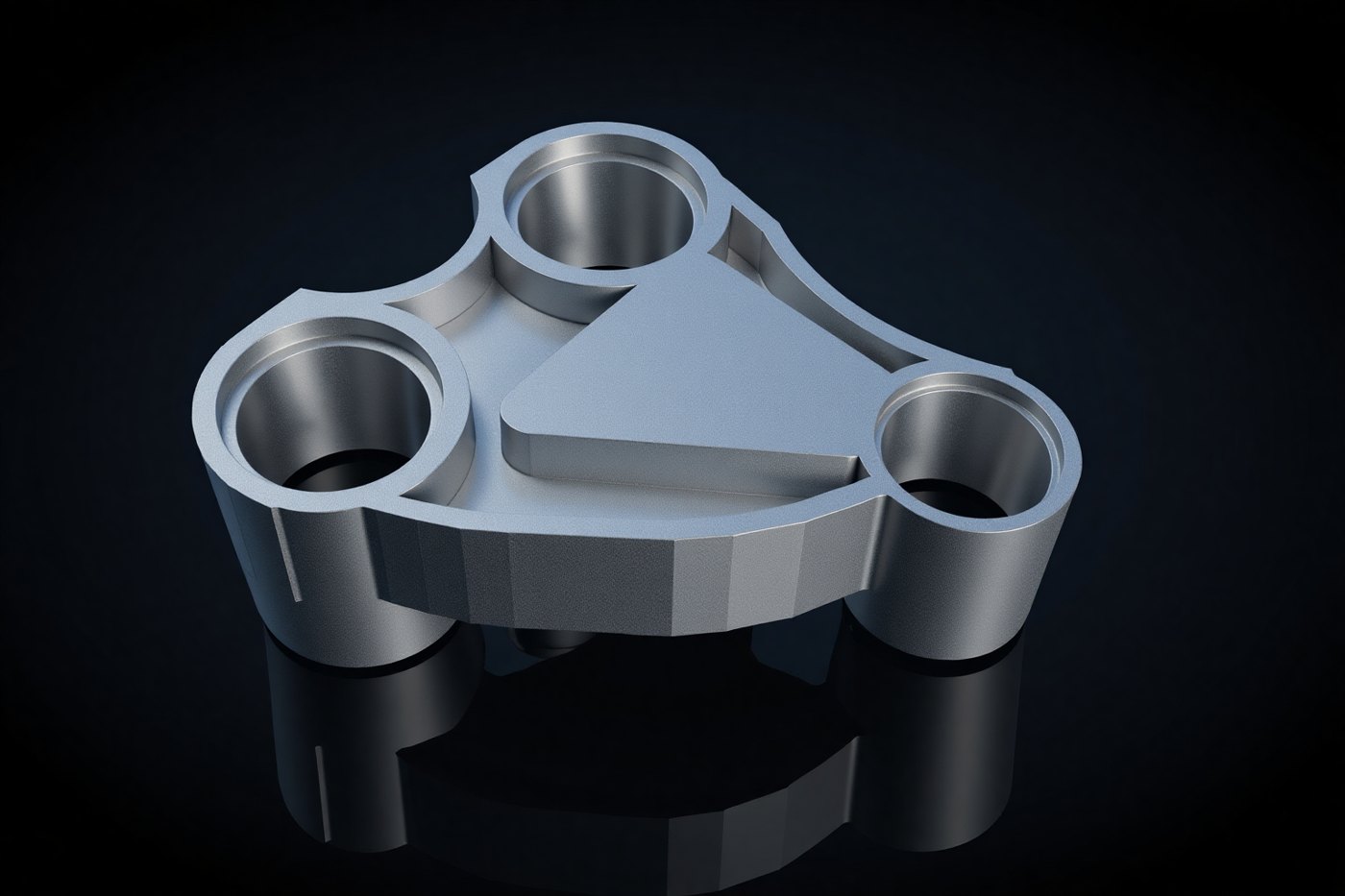
Physically based metal renders of your part from the solved 3-D model, ready for a listing or a pitch deck. These are accurate to the geometry.
AI product images

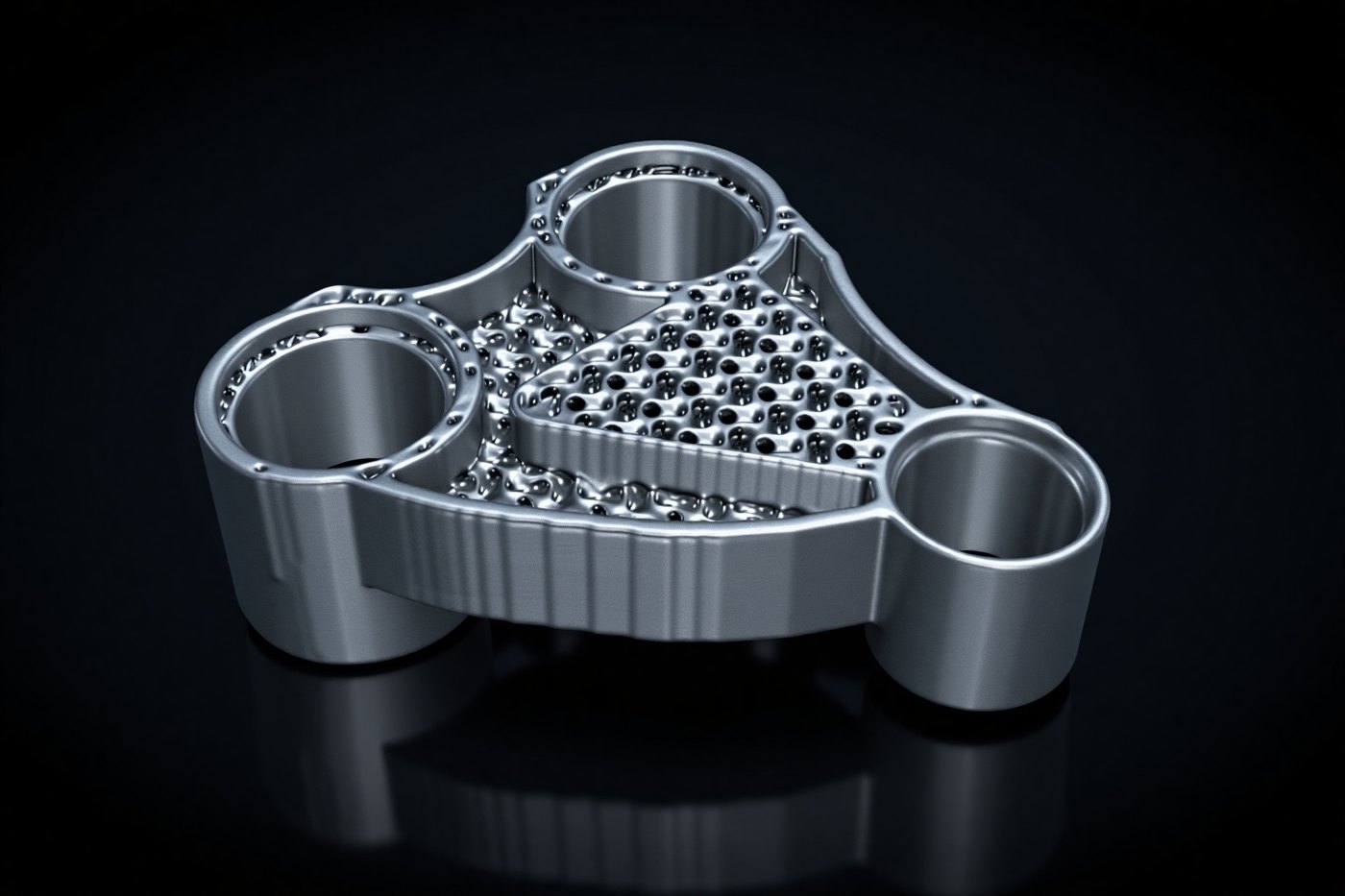
A product-photo look made from the studio render: anodised finish, rim lighting and a dark backdrop. These are marketing images, not engineering output, and are labelled as concepts.

Optimized STL

The optimizer's best design, repaired and checked watertight, so it can go straight to a slicer or CAM.

Generative lattice STL

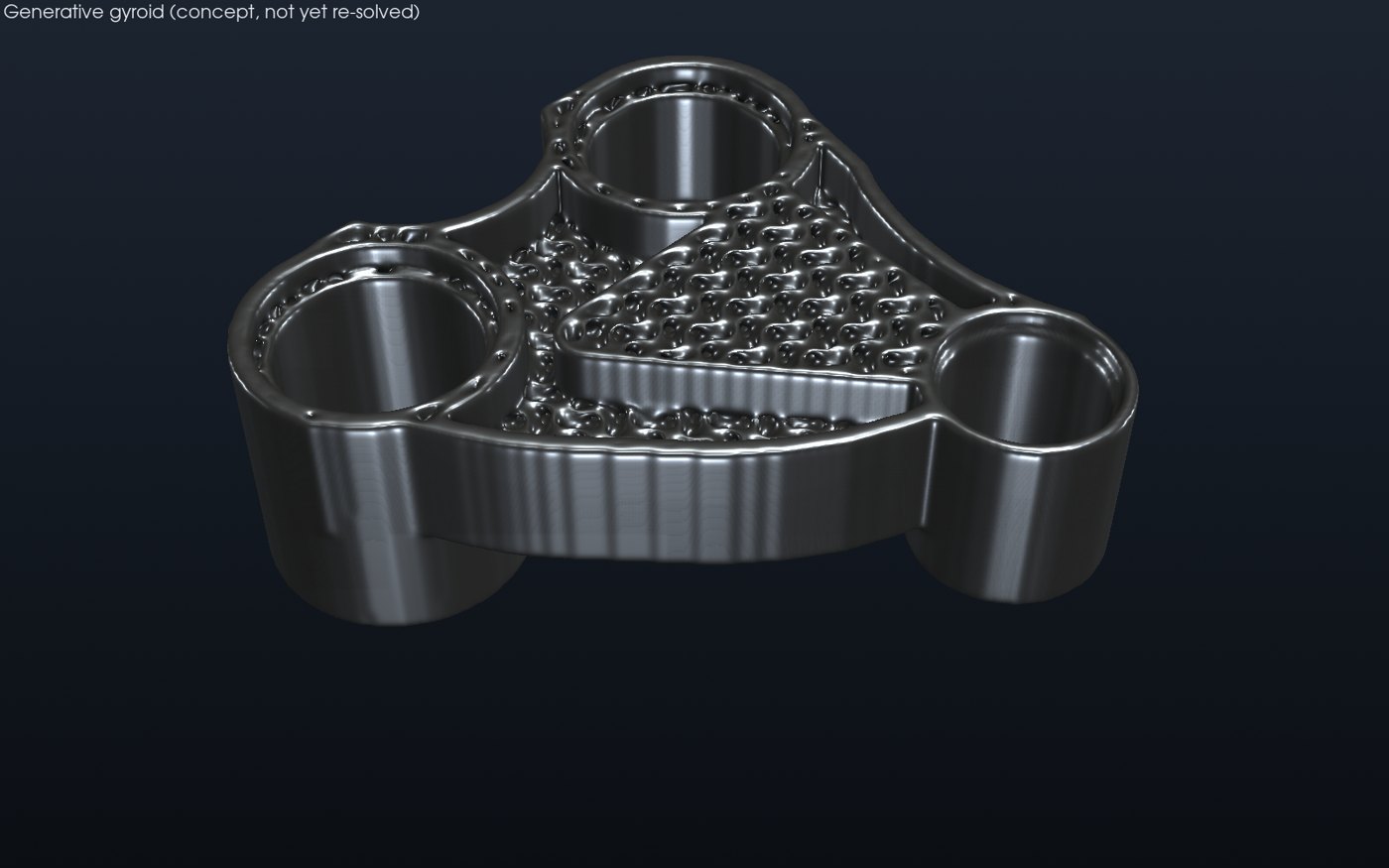
The same outline with a gyroid lattice inside. The lattice is thicker where the stress map says the part works hard. Watertight, about 20% lighter on the sample part, and labelled a concept until it passes its own stress check.

Side-by-side variations

Replicate, Replicate + Style, Optimize and Optimize + Style, each with a render, a product image and a sample STL. See the four tiers.

Before and after

Phone photos of the real part next to the finished model. See the gallery.

Render after every solve

Every strength, vibration and fatigue check comes back with a picture you can open, not only numbers.

Physics Coach on hand

Ask in plain language whether the styled version is still strong enough, and which check to run next.
Sample output

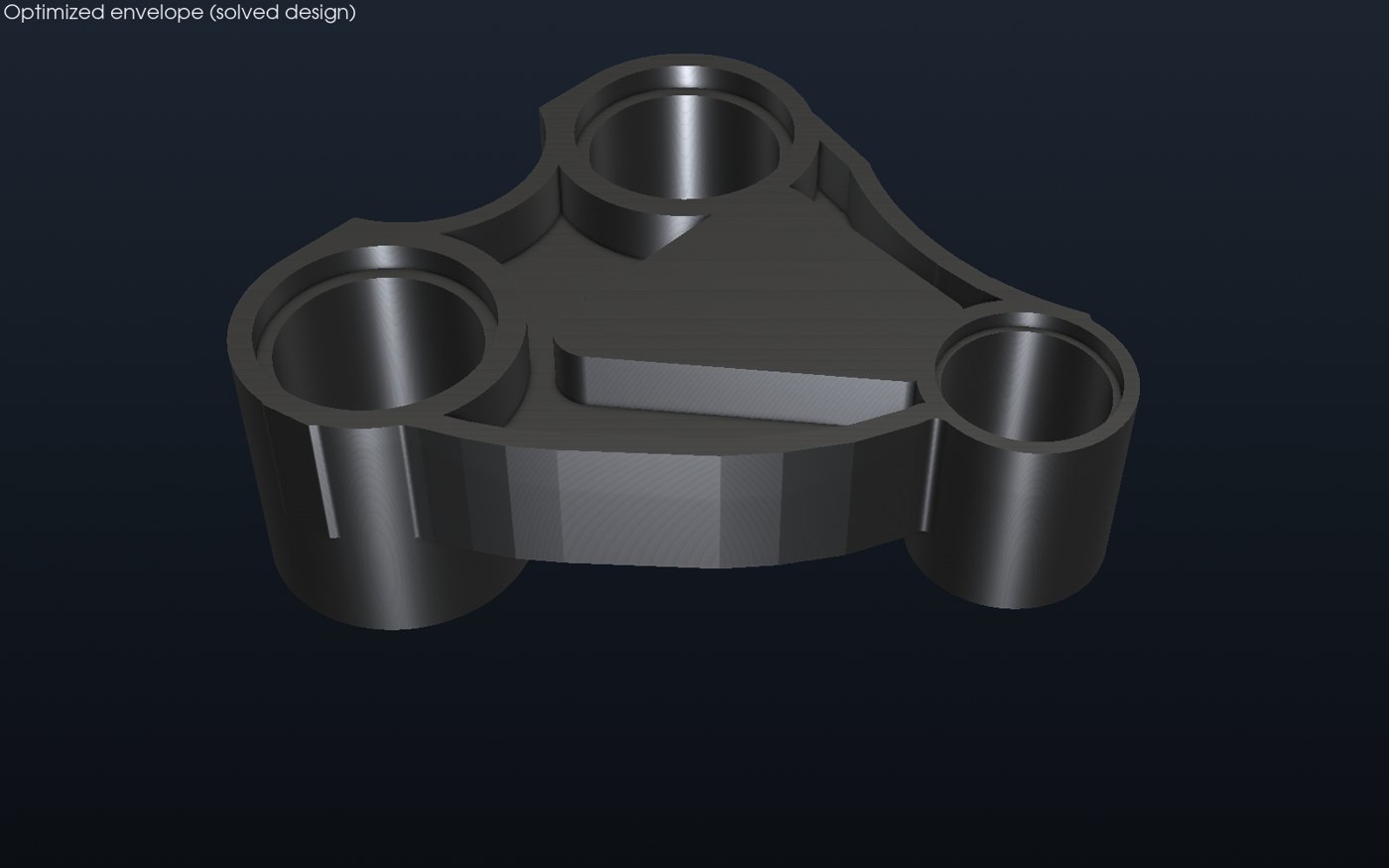
Studio render: optimized (solved)
AI product image: optimized (concept)
Studio render: generative lattice (concept)
AI product image: optimized + lattice (concept)

Studio renders come from the solved geometry. AI product images are made from those renders for marketing and can change fine detail, so they are labelled as concepts.

How to use it

  1. Create a free account. Go to app.scaniq.online and sign up. The trial gives you 25 jobs with no card.
  2. Scan or upload the part. On the Scan page, walk around the part with your phone (good light, a steady pace, the part kept still), or upload an STL you already have. Astra checks the photos for blur before you wait on a build.
  3. Check it. In the Coach chat, type check static stress. You get the safety factor and a stress render.
  4. Optimize it. Open Optimize, set the load and the material, and run it. Astra keeps only designs that still meet the strength target.
  5. Get the Astra pack. When the optimize run passes, the pack builds itself within a few minutes: optimized STL, generative STL, two studio renders and two AI product images. They appear under the result.
  6. Download and use. STL files go to your slicer, CAM or machinist. The PNGs go to your listing, deck or social posts. Use the product images for marketing only; use the STL for manufacturing.
  7. Order a finished part (optional). Email [email protected] with the job link and the tier you want.

Tips for the best renders

  • Shoot in daylight or under even shop light. Avoid night shots and motion blur.
  • Put a ruler or the printed mat in the frame so the scale is exact.
  • Keep the part still and move the phone. Don't turn the part between shots.
  • Blur or remove number plates and personal details before you upload.
  • For safety-critical parts (suspension, brakes, lifting), treat results as decision support and get qualified sign-off and physical testing.